Pages

December 17, 2010

Rename your Start Menu button

You can use the method described above if you want: In the US version of Windows XP Pro, the string is at 0EE36F (Classic-style button) and 0EE096 (XP-style button). But instead, we are going to use Resource Hacker.
2.1. Bypassing Windows File Protection
1. In Windows Explorer, click Tools, Folder Options, then View. Uncheck Hide protected operating system files and check Show hidden files and folders.
2. There is a file named filelist.xml in \windows\system32\Restore. Right click the file, then click Properties, and uncheck Read-only. Open filelist.xml in Notepad, and add the line shown in red below, then save the file and close Notepad.
<exclude>
     
<rec>%systemroot%\explorer.exe</rec>
     <rec>%windir%\system.ini</rec>
     <rec>%windir%\tasks\desktop.ini</rec>
     <rec>%windir%\win.ini</rec>
     <rec>*:\AUTOEXEC.BAT</rec>
     <rec>*:\CONFIG.MSI</rec>
     <rec>*:\CONFIG.SYS</rec>
</exclude>
3. In \windows\system32\dllcache, you will find a backup copy of explorer.exe. Rename it to explorer.bak.
2.2. Changing the name of the Start Menu button


1. Run Resource Hacker, and open \windows\explorer.exe
2. Click String Table > 37 > 1033 (XP-style button)
3. Replace "start" with whatever you want ("hello", in the picture above)
4. Click the Compile Script button.
Repeat steps 3 and 4 for String table > 38 > 1033 (Classic-style button)
5. Save the file (File>Save). Hit Cancel then Yes when Windows File Protection pops up. 

Note: If an error message pops up when saving the file, kill explorer.exe (Clt-Alt-Del > Processes > explorer.exe > End Process > File > New Task), repeat step 5 (save the file in Resource Hacker), and restart explorer.exe (Clt-Alt-Del > Processes > explorer.exe > End Process > File > New Task > explorer > OK).

December 15, 2010

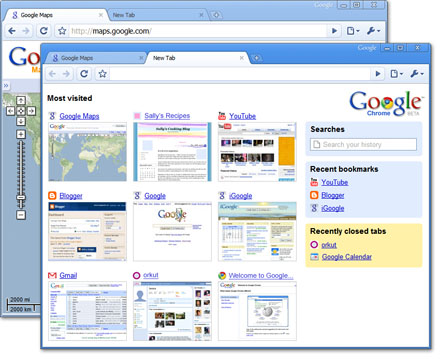
Google Chrome Tips, Tricks, Hacks and Shortcuts

1. Create application shortcut : Create desktop and Start menu shortcuts to web apps such as Gmail - go to Gmail.com and then select  from the Page Control menu (in the top-right corner of your browser - it looks like a page with the corner folded over). Now choose where you want to place your shortcut. This works for other Google apps such as Calendar and Documents, and other services such as Windows Live Hotmail.
2. Control + Shift + N opens an ‘incognito’ window - sites you view in this window won’t appear in your history and cookies served by sites in this window will be deleted when the window is closed.
3. You can open a link in an incognito window by right-clicking the link and selecting Open link in incognito window.
4. Alt + Home loads your Google Chrome home page, with thumbnails of your most visited sites shown in the active tabbed window.
5. Control + T opens a new tab. You can drag tabs around to change their order or drag a tab out of the window into its own window.
6. Control + Shift + T opens your most recently closed tab. Press the key combination again to open the tab closed before that one. Google Chrome remembers the last 10 tabs you’ve closed.
7. Jump to different open tabs using Control + 1, Control + 2, Control + 3, etc. Control + 9 takes you to the last tab.
8. Control + Tab lets you cycle through your open tabs in order.
9. Control + Shift + Tab cycles through your tabs in the opposite order.
10. As with Firefox 3, you can drag a link onto a tab to open it in that tab, or drop it between two tabs to open a new tab in that position.
11. To bookmark a site click the star on the left of the address bar and then select a folder to add it to.
12. Control +B hides the Google Chrome bookmarks bar. Press Control + B to bring it back again.
13. Right-click or hold down the back button and you’ll get a drop-down list of sites to go back through. Show Full History, at the bottom of the list, opens a new tab with your full browser history.
14. Control + H is a faster way to bring up the History page.
15. You can delete history for chosen days by scrolling to the day you want to delete and clicking Delete history for this day on the right-hand side of the window.
16. Control + J brings up your Downloads page.
17. To clear an item from your Downloads page, right-click an entry and select Remove.
18. Press Control + K or Control + E to search from the address bar. Once pressed, you’ll see a ? symbol appear in the address bar and you can simply enter your search query and hit Return.
19. Right-click the top of the browser window and select Task manager to see how much memory different tabs and plug-ins are using. Highlight one and click End process to stop it running.
20. Shift + Escape is a quicker way to bring up the Google Chrome Task manager.
21. To see what plug-ins are installed, type about:plugins into the address window.
22. You can also type the following commands into the Google Chrome address window: about:stats, about:network, about:histograms, about:memory, about:cache, about:dns.
23. Type about:crash to see what a crashed tab looks like.
24. A three-second diversion: type about:internets. (Only works in Windows XP.)
25. Edit any web page - right-click a page and select Inspect element. Now edit the HTML source code and hit Return to view the changes.
26. To make Google Chrome your default browser, click the Tools button (in the right-hand corner of the browser window - a spanner icon). Select Options, click the Basics tab and then click the Make Google Chrome my default browser button.
27. To delete cookies, go to Tools > Options > Under the Hood. Scroll down to the Security section, and click Show cookies. Now you can click Remove all or remove individual cookies.
28. To clear more data such as the Google Chrome browsing history and cache, click the Tools icon and select Clear browsing data…
29. To clear the most visited web sites that appear on your Google Chrome start page, you must clear your browsing history using the method above.
30. Clearing your Google Chrome browser history will also stop matches from previously browsed sites appearing as suggestions in your address bar.

Windows 7 Cheat Sheet

From Desktop

  1. Windows Key + Tab : Aero [press Tab to cycle between Windows]
  2. Windows Key + E : Windows Explorer is launched.
  3. Windows Key + R : Run Command is launched.
  4. Windows Key + F : Search (which is there in previous Windows versions too)
  5. Windows Key + X : Mobility Center
  6. Windows Key + L : Lock Computer (It is there from the earlier versions as well)
  7. Windows Key + U : Launches Ease of Access
  8. Windows Key + P : Projector
  9. Windows Key + T : Cycle Super Taskbar Items
  10. Windows Key + S : OneNote Screen Clipping Tool [requires OneNote]
  11. Windows Key + M : Minimize All Windows
  12. Windows Key + D : Show/Hide Desktop
  13. Windows Key + Up : Maximize Current Window
  14. Windows Key + Down : Restore Down / Minimize Current Windows
  15. Windows Key + Left : Tile Current Window to the Left
  16. Windows Key + Right : Tile Current Windows to the Right
    [Continue pressing the Left and Right keys to rotate the window as well]
  17. Windows Key + # (# is any number) : Quickly Launch a new instance of the application in the Nth slot on the taskbar. Example Win+1 launches first pinned app, Win+2 launches second, etc.
  18. Windows Key + = : Launches the Magnifier
  19. Windows Key + Plus : Zoom in
  20. Windows Key + Minus : Zooms out
  21. Windows Key + Space : Peek at the desktop

From Windows Explorer

22. Alt + Up : Go up one level
23. Alt + Left/ Right : Back/ Forward
24. Alt + P : Show/hide Preview Pane

Taskbar modifiers

25. Shift + Click on icon : Open a new instance
26. Middle click on icon : Open a new instance
27. Ctrl + Shift + Click on icon : Open a new instance with Admin privileges
28. Shift + Right-click on icon : Show window menu (Restore / Minimize / Move / etc). Note: Normally you can just right-click on the window thumbnail to get this menu.
29. Shift + Right-click on grouped icon : Menu with Restore All / Minimize All / Close All, etc.
30. Ctrl + Click on grouped icon : Cycle between the windows (or tabs) in the group
Though some of them are there in previous versions of Windows, Windows 7 has incorporated many of them and have started many afresh.

Shutdown PC in 3 Seconds...


PRESS CTRL + ALT + DELETE {TO OPEN TASK MANAGER...}

NOW HOLD CTRL {KEEP HOLDING UNTIL PC SHUTS DOWN}
CLICK ON SHUTDOWN IN TASK MANAGER {GIVEN AS A TAB}
THEN
CLICK ON TURN OFF.....
PC WILL BE SHUT DOWN IN 3 SECONDS {U CAN COUNT}

December 14, 2010

Hack a Windows XP Administrator or Other User without changing Password


1. Get physical access to the machine. Remember that it must have a CD or DVD drive.

2. Download DreamPackPL HERE.= http://www.ziddu.com/download/12961542/dreampackpl.rar.html
3. Unzip the downloaded dreampackpl_iso.zip and you'll get dreampackpl.ISO.
4. Use any burning program that can burn ISO images.
5. After you have the disk, boot from the CD or DVD drive. You will see Windows 2000 Setup and it will load some files.
6. Press "R" to install DreamPackPL.
7. Press "C" to install DreamPackPL by using the recovery console.
8. Select the Windows installation that is currently on the computer (Normally is "1" if you only have one Windows installed)
9. Backup your original sfcfiles.dll by typing:
"ren C:\Windows\System32\sfcfiles.dll sfcfiles.lld" (without quotes)
10. Copy the hacked file from CD to system32 folder. Type:
"copy D:\i386\pinball.ex_ C:\Windows\System32\sfcfiles.dll" (without quotes and assuming your CD drive is D:)
11. Type "exit", take out disk and reboot.
12. In the password field, type "dreamon" (without quotes) and DreamPack menu will appear.
13. Click the top graphic on the DreamPack menu and you will get a menu popup.
14. Go to commands and enable the options and enable the god command.

Show your name in Taskbar

Trick to Show ur name after time in taskbar...


Hi freinds !
I m here to tell u a trick to add up ur name in place of AM and PM beside time and make urself to feel proud among ur group of frnds.
Its simple


-> Start
-> Control Pannel
-> Regional and LAnguage option
-> Customize (beside English US)
-> Go to TIME tab
-> Change AM symbol and PM symbol from AM and PM to ur name
-> Apply
-> Ok ...


IS it changed ??? Might be not ...
Now go to time in taskbar and Double Click it to open "Date and time property" ...


Look place where time chnges in digital form i.e. 02:47:52 AM , click to arrow to cnage the AM or PM by selecting and press arrow. It will Show ur name or name that was entered by u, Apply -> OK and be HAPPY 8)

Download Videos from YouTube without software

Download YouTube Videos without any Software.
You can Download YouTube Videos in your system

http://www.dlyoutube.com
This site for youtube download.

http://www.keepvid.com
THis is for any video like youtube.

- Open the above link.
- Just copy and paste the url of a particular YouTube video and press download button.
- You will get another download link below. Click it and save the file.
- Save it as .flv file
You can download the .FLV Player (to play the above file) available at the bottom of the same webpage. No setup; no installtation required.