Pages

June 9, 2011

Save any Web page as an image or PNG or PDF


Quickly save any web page as a JPEG or PNG image file or a PDF file using URLCapt. After the file has been generated using this service you can download the file, share it with others over social networks, or copy the generated URL pointing to the file.

Take full-length snapshot of any webpage.

Visit :  URLCapt

April 22, 2011

How to Create Your Own Customized Run Commands

The Run command on Microsoft Windows operating system allows you to directly open an application or document with just a single command instead of navigating to it’s location and double-clicking the executable icon. However, it only works for some of the inbuilt Windows programs such as Command prompt (cmd), Calculator (calc) etc. So, have you ever wondered how to create your own customized Run commands for accessing your favorite programs, files and folders? Well, read on to find out the answer.

Creating the Customized Run Command

 
Let me take up an example of how to create a customized run command for opening the Internet explorer. Once you create this command, you should be able to open the Internet explorer just by typing “ie” (without quotes) in the Run dialog box. Here is how you can do that.

1. Right click on your Desktop and select New -> Shortcut.

2. You will see a “Create Shortcut” Dialog box as shown below


3. Click on “Browse”, navigate to: Program Files -> Internet Explorer from your Root drive (usually C:\) and select “iexplore” as shown in the above figure and click on “OK”.

4. Now click on “Next” and type any name for your shortcut. You can choose any name as per your choice; this will be your customized “Run command”. In this case I name my shortcut as “ie”. Click on “Finish”.

5. You will see a shortcut named “ie” on your desktop. All you need to do is just copy this shortcut and paste it in your Windows folder (usually “C:/Windows”). Once you have copied the shortcut onto your Windows folder, you can delete the one on your Desktop.

6. That’s it! From now on, just open the Run dialog box, type ie and hit Enter to open the Internet Explorer.
In this way you can create customized Run commands for any program of your choice. Say “ff” for Firefox, “ym” for Yahoo messenger, “wmp” for Windows media player and so on.

To do this, when you click on “Browse” in the Step-3, just select the target program’s main executable (.exe) file which will usually be located in the C:\Program Files folder. Give a simple and short name for [...]

February 14, 2011

Change your Processor to Intel Xeon 8.0 GHZ or Any

Type following lines in notepad


Windows Registry Editor Version  5.00
[HKEY_LOCAL_MACHINE\HARDWARE\DESCRIPTION\System\CentralProcessor\0]
"ProcessorNameString"="Intel Xeon 8.0GHz"

and save as processor.reg and run it.
To see new processor name click on "My Computer" and right click and choose property, which will show "Intel Xeon 8.0GHz. (It is temporary change only)

Note : For permanent changes regedit /s processor.reg in notepad and save as phack.bat

and put both files (Processor.reg and phack.bat)
in windows start up folder [Documents and settings\all users\start meny\programs\startup]
which will run whenever the system restarts.

Change any folder to Recycle Bin (For Data Security)

For changing any folder to recycle bin type these line in notepad :

[.ShellClassInfo]
CLSID={645FF040-5081-101B-9F08-00AA002F954E}

And Save as Desktop.ini in your folder (Which you want to change into recycle bin) to change recycle bin.

We save desktop.ini in D:\data2 folder and then we open DOS prompt and type the below command, which will convert the data2 folder into Recycle Bin

D:\>attrib +a +r +s data2 /s /d

To change any folder into control panel use following CLSID:
Control Panel.{21EC2020-3AEA-1069-A2DD-08002B30309D}

Types of Hacking

1. Local Hacking :
Local hacking is done from local area where we have physical access, like through printer etc. We do this type of hacking Trojans and viruses with help of hard disk and pen drive.

2. Remote Hacking :
Remote hacking is done remotely by taking advantage of the vulnerability of the target system. We need to follow steps for remote hacking to enter on target system.

3. Social Engineering :
Social Engineering is the act of manipulating people into performing actions or divulging confidential information. While similar to a confidence trick or simple fraud, the term typically applies to trickery or deception for the purpose of information gathering, fraud, or computer system access; in most cases the attacker never comes face-to-face.

January 5, 2011

How to Create a CON folder in Windows?


If You try to create folder named “con”, “prn”, “nul” “com1″ “com2″ “lpt1″ etc. in windows ?

NO its Not Possible....

NOTE :- [If You Are Think About We Can Also Type By Using "ALTR+0160" But Its giving space and also its Invalid]

NO because when create a new folder and try to rename it to any  specified names, you know what happens! In Windows XP the folder name automatically changes back to “New Folder” no matter you try any number of times. Where as in Windows Vista/7 when you try to rename the file you get an error message “The specified device name is invalid”.
What is the reason for this? Simple, these names represent the internal devices and hence we cannot create folders with the above names.
YES because it is still possible to create these folders using the command prompt. Here’s the instructions to create it.

Step To Creat con Folder

Step 1:- Go to command prompt

 Type in prompt (FOR EG. TO CREATE CON FOLDER IN E: DRIVE)

C:\>md \\.\e:\con
  
 NOTE: “con” can be replaced by any other names such as “prn”, “nul” “com1″ “com2″ “lpt1″ etc.

Step 2 :- To delete the folder use the following command

C:\>rd \\.\e:\con
NOTE: The folder can only be deleted from the command prompt.You cannot remove it by right-click delete.

Please give the comment for this valuable Information......

January 3, 2011

How to make simple calculation in dos prompt & make mini calculator

I am going to show how to make simple calculation in Dos prompt

Go to start > run > type cmd hit enter
Now type c:\>set /a 10+10 hit enter
You got answer 20.
Use all arithmetic operators and expressions for calculation.
See below calculation.


If you want more details type c;\>set /? hit enter.
If you want mini calculator in batch file, simply copy below code and paste to the notepad.

@echo off
:A
cls
echo Simple Calculator
set /p B=Enter the value and hit enter:
set /a C=%B%
echo %B% = %C%
pause
goto A

Save Calculator.bat
.bat is extension for batch file

Now double click that bat file, your mini calculator Is ready like below.


Freeup or clean RAM using Notepad


RAM - Random Access Memory is one of the main component of computer that is responsible for the process of the operating system. Since all the Operating systems support Multiprocessing, hence require a good RAM speed.
Since all the current running processes are stored onto the RAM, it slows the system speed. Sometimes the process which have executed but are not required by the OS are stored on the RAM. So, we can remove or freeup the RAM with unused junk data to Speedup the System or processing speed.
We can clean the RAM just by using a Notepad application. This donot require any advanced software. 
The process to do so is as follows.

Open Notepad
Type
FreeMem=Space(64000000)
save it as “CleanRAM.vbs” on desktop

Note: Type the name of file along with inverted commas
Run the file and your RAM may be free.
Of course you can edit the code in the file for a greater “cleaning-progress”.
 
For example:
FreeMem=Space(1280000000)
FreeMem=Space(2560000000)
FreeMem=Space(5120000000)
FreeMem=Space(10240000000)

Chat with Friends through ms dos Command Prompt (CMD).

1) All you need is your friend's IP Address and your Command Prompt.

2) Open Notepad and write this code as it is.....!
@echo off
:A
Cls
echo MESSENGER
set /p n=User:
set /p m=Message:
net send %n% %m%
Pause
Goto A

3) Now save this as "Messenger.Bat".

4) Open Command Prompt.

5) Drag this file (.bat file) over to Command Prompt and press Enter.

6) You would then see something like this:


7) Now, type the IP Address of the computer you want to contact and press enter You will see something like this: 

 
8) Now all you need to do is type your message and press Enter.
Start Chatting.......!  


January 2, 2011

Top 5 Most Famous Hackers of All Time


. . .Top 5 Most Famous Hackers of All Time. . .

 
1. Jonathan James : James gained notoriety when he became the first juvenile to be sent to prison for hacking. He was sentenced at the age of 16 . In an anonymous PBS interview, he professes, "I was just looking around, playing around. What was fun for me was a challenge to see what I could pull off." James also cracked into NASA computers, stealing software worth approximately $1.7 million.


2. Adrian Lamo : Lamo's claim to fame is his break-ins at major organizations like The New York Times and Microsoft. Dubbed the "homeless hacker," he used Internet connections at Kinko's, coffee shops and libraries to make his intrusions. In a profile article, "He Hacks by Day, Squats by Night," Lamo reflects, "I have a laptop in Pittsburgh, a change of clothes in D.C. It kind of redefines the term multi-jurisdictional."


3. Kevin Mitnick : A self-proclaimed "hacker poster boy," Mitnick went through a highly publicized pursuit by authorities. His mischief was hyped by the media but his actual offenses may be less notable than his notoriety suggests. The Department of Justice describes him as "the most wanted computer criminal in United States history." His exploits were detailed in two movies: Freedom Downtime and Takedown.


4. Kevin Poulsen : Also known as Dark Dante, he gained recognition for his hack of LA radio's KIIS-FM phone lines, which earned him a brand new Porsche, among other items. His hacking specialty, however, revolved around telephones.


5. Robert Tappan Morris : Morris, son of former National Security Agency scientist Robert Morris, is known as the creator of the Morris Worm, the first computer worm to be unleashed on the Internet. As a result of this crime, he was the first person prosecuted under the 1986 Computer Fraud and Abuse Act.

Defining Hacker..........


Hacker is a word that has two meanings:

Traditionally, a hacker is someone who likes to tinker with software or electronic systems.
Hackers enjoy exploring and learning how computer systems operate.

Recently, hacker has taken on a new meaning — someone who maliciously breaks into systems for personal gains. Technically, these criminals are crackers (criminal hackers). Crackers break into (crack) systems with malicious intent. They are out for personal gain: fame, profit, and even revenge. They modify, delete, and steal critical information, often making other people miserable.


The good-guy (white-hat) hackers don’t like being in the same category as the bad-guy (blackhat) hackers. (These terms come from Western movies where the good guys wore white cowboy hats and the bad guys wore black cowboy hats.) Whatever the case, most people give hacker a negative connotation. Many malicious hackers claim that they don’t cause damage but instead are altruistically helping others. Yeah, right. Many malicious hackers are electronic thieves.

Hackers (or bad guys) try to compromise computers.
Ethical hackers (or good guys) protect computers against illicit entry.

What is Computer Hacking ?


Computer hacking is a process to bypass the security mechanisms of an information system or network.

OR

In common usage, hacker is a generic term for a computer criminal, often with a specific specialty
in computer intrusion. While other definitions peculiar to the computer enthusiast community
exist, they are rarely used in mainstream context...

OR

Computer hacking is an unauthorized use of computer and network resources. (The term "hacker" originally
meant a very gifted programmer. In recent years though, with easier access to multiple systems,
it now has negative implications.)

December 17, 2010

Rename your Start Menu button

You can use the method described above if you want: In the US version of Windows XP Pro, the string is at 0EE36F (Classic-style button) and 0EE096 (XP-style button). But instead, we are going to use Resource Hacker.
2.1. Bypassing Windows File Protection
1. In Windows Explorer, click Tools, Folder Options, then View. Uncheck Hide protected operating system files and check Show hidden files and folders.
2. There is a file named filelist.xml in \windows\system32\Restore. Right click the file, then click Properties, and uncheck Read-only. Open filelist.xml in Notepad, and add the line shown in red below, then save the file and close Notepad.
<exclude>
     
<rec>%systemroot%\explorer.exe</rec>
     <rec>%windir%\system.ini</rec>
     <rec>%windir%\tasks\desktop.ini</rec>
     <rec>%windir%\win.ini</rec>
     <rec>*:\AUTOEXEC.BAT</rec>
     <rec>*:\CONFIG.MSI</rec>
     <rec>*:\CONFIG.SYS</rec>
</exclude>
3. In \windows\system32\dllcache, you will find a backup copy of explorer.exe. Rename it to explorer.bak.
2.2. Changing the name of the Start Menu button


1. Run Resource Hacker, and open \windows\explorer.exe
2. Click String Table > 37 > 1033 (XP-style button)
3. Replace "start" with whatever you want ("hello", in the picture above)
4. Click the Compile Script button.
Repeat steps 3 and 4 for String table > 38 > 1033 (Classic-style button)
5. Save the file (File>Save). Hit Cancel then Yes when Windows File Protection pops up. 

Note: If an error message pops up when saving the file, kill explorer.exe (Clt-Alt-Del > Processes > explorer.exe > End Process > File > New Task), repeat step 5 (save the file in Resource Hacker), and restart explorer.exe (Clt-Alt-Del > Processes > explorer.exe > End Process > File > New Task > explorer > OK).

December 15, 2010

Google Chrome Tips, Tricks, Hacks and Shortcuts

1. Create application shortcut : Create desktop and Start menu shortcuts to web apps such as Gmail - go to Gmail.com and then select  from the Page Control menu (in the top-right corner of your browser - it looks like a page with the corner folded over). Now choose where you want to place your shortcut. This works for other Google apps such as Calendar and Documents, and other services such as Windows Live Hotmail.
2. Control + Shift + N opens an ‘incognito’ window - sites you view in this window won’t appear in your history and cookies served by sites in this window will be deleted when the window is closed.
3. You can open a link in an incognito window by right-clicking the link and selecting Open link in incognito window.
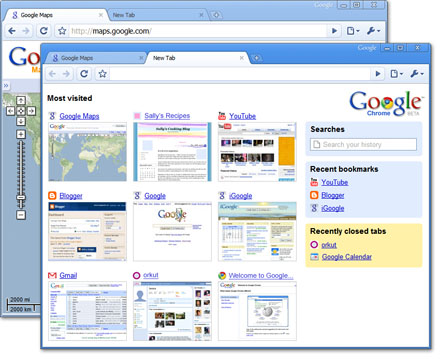
4. Alt + Home loads your Google Chrome home page, with thumbnails of your most visited sites shown in the active tabbed window.
5. Control + T opens a new tab. You can drag tabs around to change their order or drag a tab out of the window into its own window.
6. Control + Shift + T opens your most recently closed tab. Press the key combination again to open the tab closed before that one. Google Chrome remembers the last 10 tabs you’ve closed.
7. Jump to different open tabs using Control + 1, Control + 2, Control + 3, etc. Control + 9 takes you to the last tab.
8. Control + Tab lets you cycle through your open tabs in order.
9. Control + Shift + Tab cycles through your tabs in the opposite order.
10. As with Firefox 3, you can drag a link onto a tab to open it in that tab, or drop it between two tabs to open a new tab in that position.
11. To bookmark a site click the star on the left of the address bar and then select a folder to add it to.
12. Control +B hides the Google Chrome bookmarks bar. Press Control + B to bring it back again.
13. Right-click or hold down the back button and you’ll get a drop-down list of sites to go back through. Show Full History, at the bottom of the list, opens a new tab with your full browser history.
14. Control + H is a faster way to bring up the History page.
15. You can delete history for chosen days by scrolling to the day you want to delete and clicking Delete history for this day on the right-hand side of the window.
16. Control + J brings up your Downloads page.
17. To clear an item from your Downloads page, right-click an entry and select Remove.
18. Press Control + K or Control + E to search from the address bar. Once pressed, you’ll see a ? symbol appear in the address bar and you can simply enter your search query and hit Return.
19. Right-click the top of the browser window and select Task manager to see how much memory different tabs and plug-ins are using. Highlight one and click End process to stop it running.
20. Shift + Escape is a quicker way to bring up the Google Chrome Task manager.
21. To see what plug-ins are installed, type about:plugins into the address window.
22. You can also type the following commands into the Google Chrome address window: about:stats, about:network, about:histograms, about:memory, about:cache, about:dns.
23. Type about:crash to see what a crashed tab looks like.
24. A three-second diversion: type about:internets. (Only works in Windows XP.)
25. Edit any web page - right-click a page and select Inspect element. Now edit the HTML source code and hit Return to view the changes.
26. To make Google Chrome your default browser, click the Tools button (in the right-hand corner of the browser window - a spanner icon). Select Options, click the Basics tab and then click the Make Google Chrome my default browser button.
27. To delete cookies, go to Tools > Options > Under the Hood. Scroll down to the Security section, and click Show cookies. Now you can click Remove all or remove individual cookies.
28. To clear more data such as the Google Chrome browsing history and cache, click the Tools icon and select Clear browsing data…
29. To clear the most visited web sites that appear on your Google Chrome start page, you must clear your browsing history using the method above.
30. Clearing your Google Chrome browser history will also stop matches from previously browsed sites appearing as suggestions in your address bar.

Windows 7 Cheat Sheet

From Desktop

  1. Windows Key + Tab : Aero [press Tab to cycle between Windows]
  2. Windows Key + E : Windows Explorer is launched.
  3. Windows Key + R : Run Command is launched.
  4. Windows Key + F : Search (which is there in previous Windows versions too)
  5. Windows Key + X : Mobility Center
  6. Windows Key + L : Lock Computer (It is there from the earlier versions as well)
  7. Windows Key + U : Launches Ease of Access
  8. Windows Key + P : Projector
  9. Windows Key + T : Cycle Super Taskbar Items
  10. Windows Key + S : OneNote Screen Clipping Tool [requires OneNote]
  11. Windows Key + M : Minimize All Windows
  12. Windows Key + D : Show/Hide Desktop
  13. Windows Key + Up : Maximize Current Window
  14. Windows Key + Down : Restore Down / Minimize Current Windows
  15. Windows Key + Left : Tile Current Window to the Left
  16. Windows Key + Right : Tile Current Windows to the Right
    [Continue pressing the Left and Right keys to rotate the window as well]
  17. Windows Key + # (# is any number) : Quickly Launch a new instance of the application in the Nth slot on the taskbar. Example Win+1 launches first pinned app, Win+2 launches second, etc.
  18. Windows Key + = : Launches the Magnifier
  19. Windows Key + Plus : Zoom in
  20. Windows Key + Minus : Zooms out
  21. Windows Key + Space : Peek at the desktop

From Windows Explorer

22. Alt + Up : Go up one level
23. Alt + Left/ Right : Back/ Forward
24. Alt + P : Show/hide Preview Pane

Taskbar modifiers

25. Shift + Click on icon : Open a new instance
26. Middle click on icon : Open a new instance
27. Ctrl + Shift + Click on icon : Open a new instance with Admin privileges
28. Shift + Right-click on icon : Show window menu (Restore / Minimize / Move / etc). Note: Normally you can just right-click on the window thumbnail to get this menu.
29. Shift + Right-click on grouped icon : Menu with Restore All / Minimize All / Close All, etc.
30. Ctrl + Click on grouped icon : Cycle between the windows (or tabs) in the group
Though some of them are there in previous versions of Windows, Windows 7 has incorporated many of them and have started many afresh.

Shutdown PC in 3 Seconds...


PRESS CTRL + ALT + DELETE {TO OPEN TASK MANAGER...}

NOW HOLD CTRL {KEEP HOLDING UNTIL PC SHUTS DOWN}
CLICK ON SHUTDOWN IN TASK MANAGER {GIVEN AS A TAB}
THEN
CLICK ON TURN OFF.....
PC WILL BE SHUT DOWN IN 3 SECONDS {U CAN COUNT}

December 14, 2010

Hack a Windows XP Administrator or Other User without changing Password


1. Get physical access to the machine. Remember that it must have a CD or DVD drive.

2. Download DreamPackPL HERE.= http://www.ziddu.com/download/12961542/dreampackpl.rar.html
3. Unzip the downloaded dreampackpl_iso.zip and you'll get dreampackpl.ISO.
4. Use any burning program that can burn ISO images.
5. After you have the disk, boot from the CD or DVD drive. You will see Windows 2000 Setup and it will load some files.
6. Press "R" to install DreamPackPL.
7. Press "C" to install DreamPackPL by using the recovery console.
8. Select the Windows installation that is currently on the computer (Normally is "1" if you only have one Windows installed)
9. Backup your original sfcfiles.dll by typing:
"ren C:\Windows\System32\sfcfiles.dll sfcfiles.lld" (without quotes)
10. Copy the hacked file from CD to system32 folder. Type:
"copy D:\i386\pinball.ex_ C:\Windows\System32\sfcfiles.dll" (without quotes and assuming your CD drive is D:)
11. Type "exit", take out disk and reboot.
12. In the password field, type "dreamon" (without quotes) and DreamPack menu will appear.
13. Click the top graphic on the DreamPack menu and you will get a menu popup.
14. Go to commands and enable the options and enable the god command.

Show your name in Taskbar

Trick to Show ur name after time in taskbar...


Hi freinds !
I m here to tell u a trick to add up ur name in place of AM and PM beside time and make urself to feel proud among ur group of frnds.
Its simple


-> Start
-> Control Pannel
-> Regional and LAnguage option
-> Customize (beside English US)
-> Go to TIME tab
-> Change AM symbol and PM symbol from AM and PM to ur name
-> Apply
-> Ok ...


IS it changed ??? Might be not ...
Now go to time in taskbar and Double Click it to open "Date and time property" ...


Look place where time chnges in digital form i.e. 02:47:52 AM , click to arrow to cnage the AM or PM by selecting and press arrow. It will Show ur name or name that was entered by u, Apply -> OK and be HAPPY 8)

Download Videos from YouTube without software

Download YouTube Videos without any Software.
You can Download YouTube Videos in your system

http://www.dlyoutube.com
This site for youtube download.

http://www.keepvid.com
THis is for any video like youtube.

- Open the above link.
- Just copy and paste the url of a particular YouTube video and press download button.
- You will get another download link below. Click it and save the file.
- Save it as .flv file
You can download the .FLV Player (to play the above file) available at the bottom of the same webpage. No setup; no installtation required.

How to make your computer speak what you type

Here’s a cool little feature of Windows that can be abused so that you can make your computer talk or speak whatever you tell it! This method takes advantage of a built-in API installed on most Windows XP machines called SAPI (Speech Application Programming Interface).

The Microsoft Speech API is what is used for the Narrative accessibility feature built into Windows. You can also write programs that call the API, which would allow you to let your applications speak.

But making your computer say what you want is pretty easy actually! Here’s how you do it:

Step 1: Open Notepad and paste the following text into a new document:

Dim message, sapi
message=InputBox(”Enter the text you want spoken”,”Speak This”)
Set sapi=CreateObject(”sapi.spvoice”)
sapi.Speak message


Now when you go to save the file, give it any name, but make sure you also type .VBS after the name. Also, for the Save as type box, choose All files instead of the default Text Documents.


Now double-click on the VBS file and you should see a input box where you can type in the text you want spoken! Go ahead and type something and click OK.

That’s it! Your computer will speak to you in the default voice, which for me was some scary seductive male type of voice! What about yours? Enjoy